主題選擇
- 官方的主題:https://hexo.io/themes/
- Hexo github 上整理:https://github.com/hexojs/hexo/wiki/Sites
- NexT:https://theme-next.iissnan.com/
個人是選擇 NexT,以下也是以此主題來說明如何套用和設定。
替換主題
下載主題並解壓縮後,放入 themes 資料夾裡。
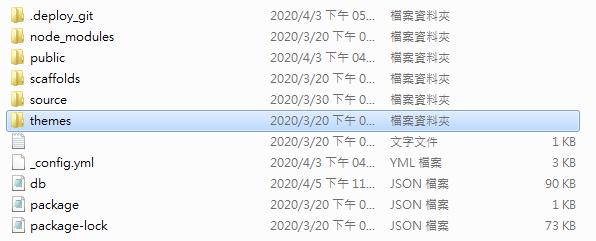
開啟 _config.ym。
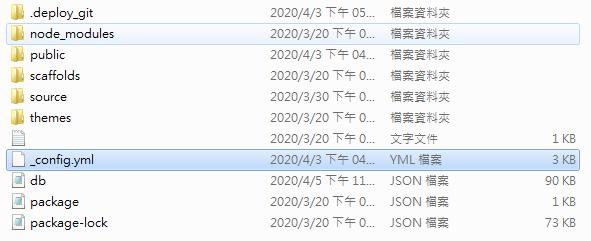
找到以下這段,並將主題資料夾名稱替換上去。
1 | theme: hexo-theme-next-master |
指令重啟即可。
1 | $ hexo server |
基本個人設定
服務啟動後,Blog 更換主題,但還缺少中文語言、個人資訊、功能等。
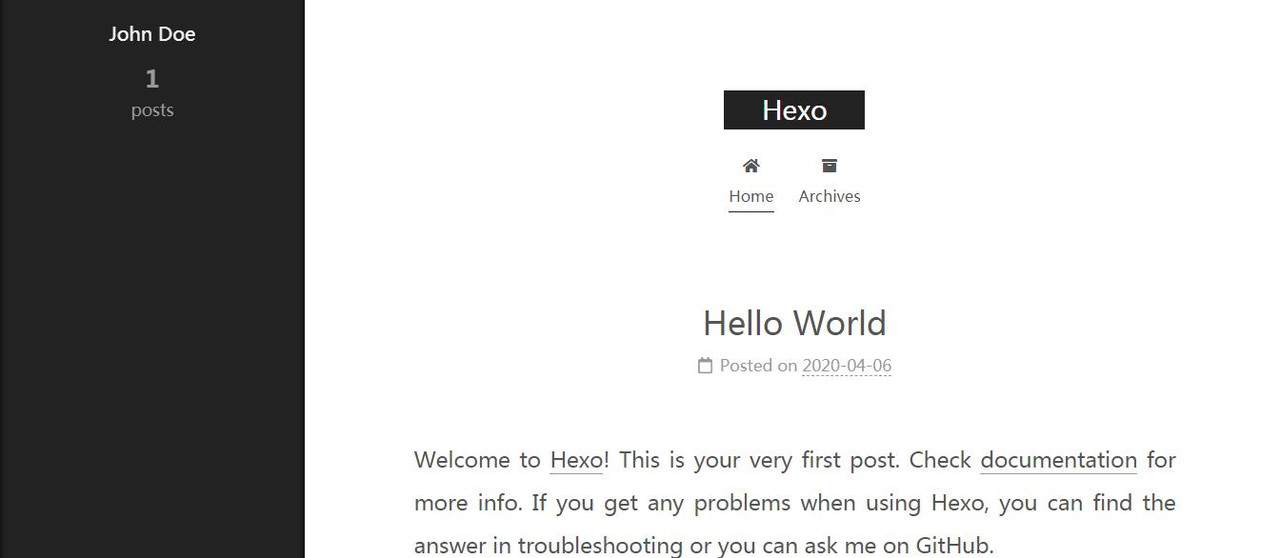
在 _config.yml 修改以下:
1 | // Site |
主題設定
以下設定是位置是存放在 themes/主題資料夾/_config.yml,請勿搞混。
Favicon
將 ico 圖檔放入 themes\主題名稱\source\images,再將檔名修改。
1 | favicon: |
主題樣式
打開其中一個註解即可,個人使用第一個。
1 | // Schemes |
側欄左右設定
1 | sidebar: |
側欄個人圖片
1 | // Sidebar Avatar |
增加標籤、分類功能
將 tags 和 categories 取消註解狀態,這動作可讓首頁多了標籤和分類的按鈕。
1 | menu: |
找到以下這段並調整成 true,調整後在側欄會出現文章、標籤、分類的按鈕。
如果沒出現標籤、分類按鈕,是因為現有的文章未使用標籤、分類。
1 | // Posts / Categories / Tags in sidebar. |
接著,依序輸入下方指令:
1 | $ hexo new page tags // 產生標籤頁面 |
source 資料夾裡會出現 categories 和 tags 資料夾,各自都有 index.md,打開後各自在 date 下方加入 type,即可完成。
tags / index.md
1 | title: tags |
categories / index.md
1 | title: categories |
側欄連結
以下依據個人需求去開啟註解,啟動功能。
其他網站連結
1 | social: |
其他網站連結 2
title 可更換成自定義名稱,連結可往下增加。
1 | links_settings: |
左下瀏覽進度
1 | scrollpercent: true |
右上 Github 圖示連結
1 | // Follow me on GitHub` banner in the top-right corner. |
Footer Icon
如果要修改成其他 icon,可在 fontawesome 中挑選。
1 | footer: |
去除底部的 Powered by Hexo & NexT 字樣
1 | // Powered by Hexo & NexT |
結語
主題設定到這告一段落,如果有新發現會再更新,也感謝以下網站的分享教學: